If you have ever wondered whether you need to be a developer to make generative art, you do not. This series goes through p5.js step by step, a tool built for designers and creatives, not computer scientists. A second series covers more complex territory, and from there the work is yours to take wherever you want.
p5.js is a JavaScript library for creative coding. It was created by Lauren Lee McCarthy in 2013 as a reinterpretation of Processing, the Java-based environment that Ben Fry and Casey Reas built in 2001 to make programming accessible to artists and designers. p5.js brings the same idea to the browser.
You can use p5.js in two ways: through the web editor at editor.p5js.org, or by setting up a local environment on your computer. This series uses the web editor throughout. No installation, no configuration - open the browser and start.
The web editor
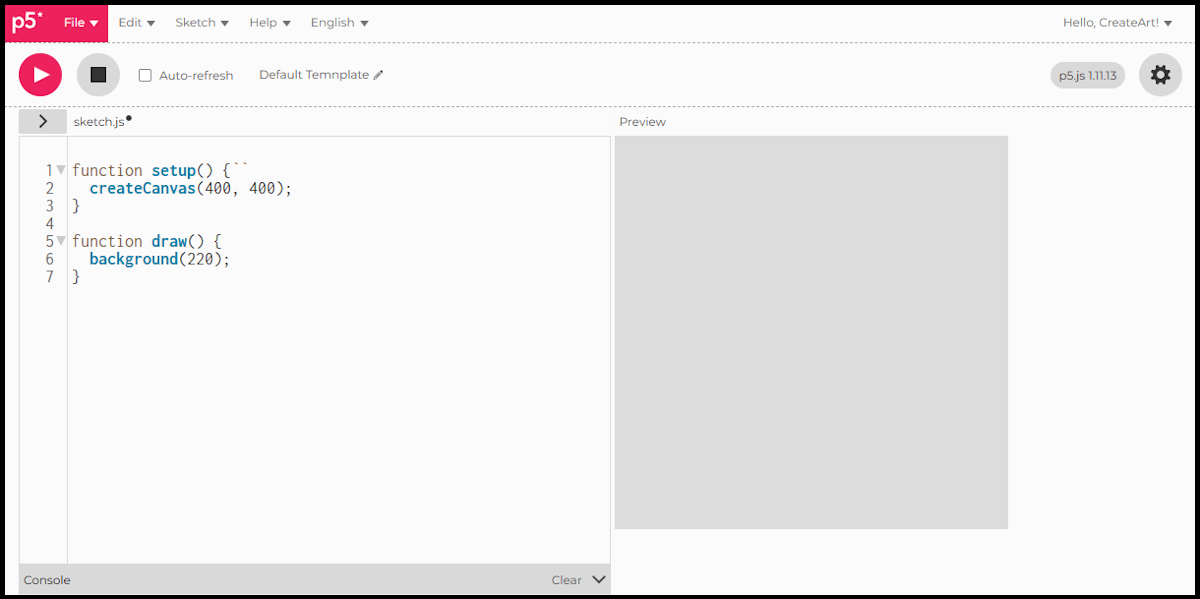
Go to editor.p5js.org. The editor loads with a default sketch already open.
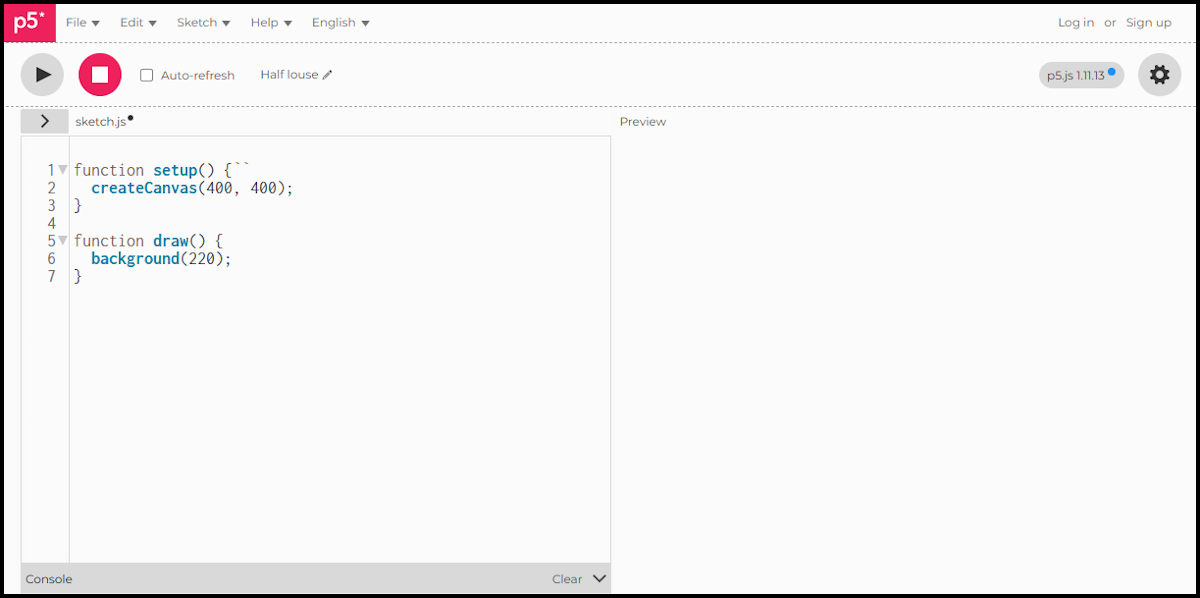
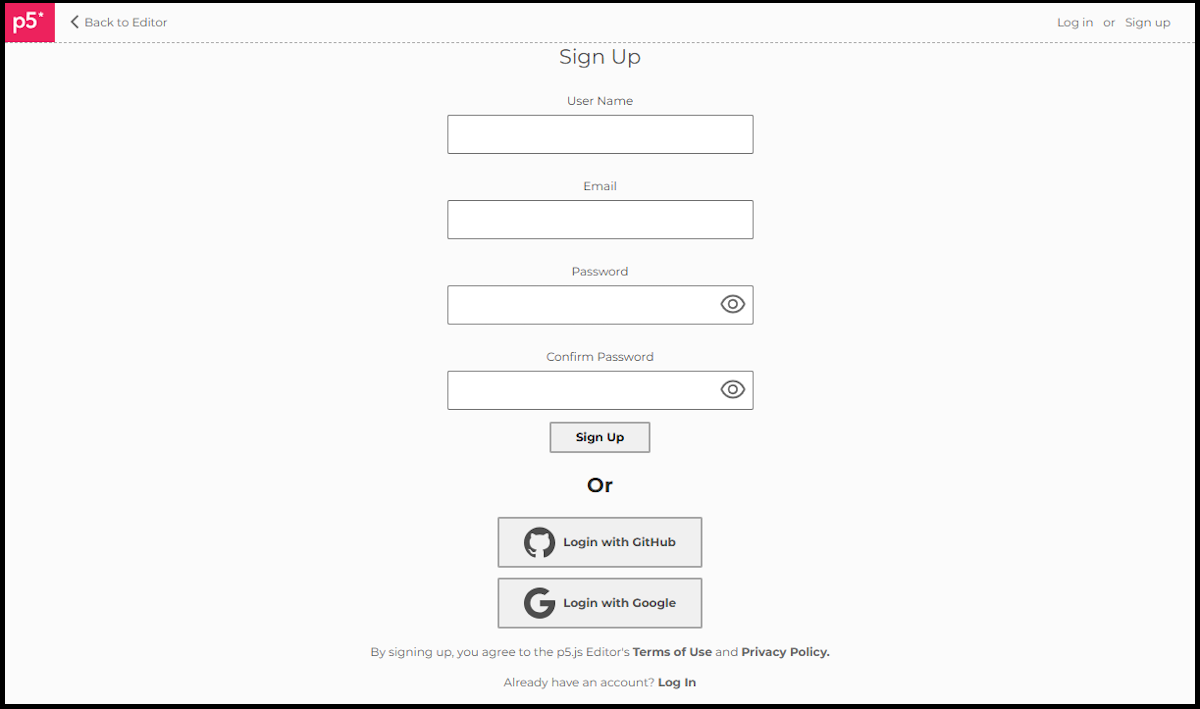
You can run sketches without an account, but you cannot save them. To save your work, click “Sign up” in the top right. You can create a free account with a username and password, or log in directly with GitHub or Google.
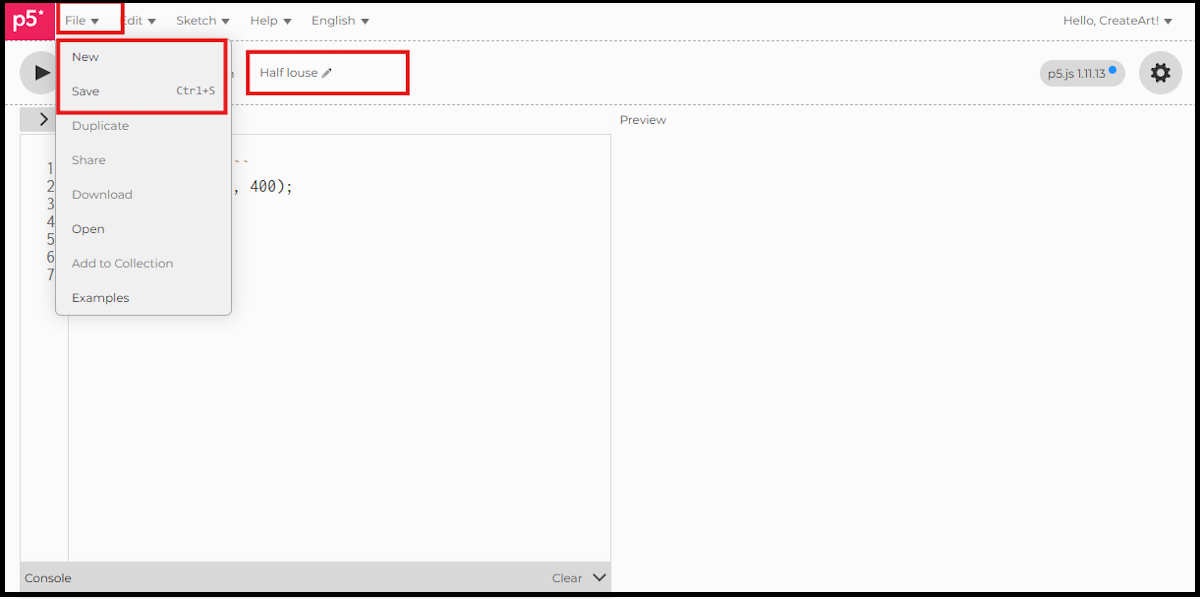
Once you have an account, use File > Save (or Cmd/Ctrl + S) to save. Each saved sketch gets a name - you can rename it by clicking the pencil icon next to the sketch name at the top.
To start a fresh sketch, go to File > New. The File menu is also where you save your work, duplicate an existing sketch, or download it to your computer.
The default template
Every new sketch opens with this code:
function setup() {
  createCanvas(400, 400);
}

function draw() {
  background(220);
}
Think of it like sitting down to draw. Before anything else, you reach for a piece of paper. That is what createCanvas(400, 400) does: it puts a 400 by 400 pixel canvas in front of you. setup() is where that happens. It runs once when the sketch starts, and it is where you get everything ready before the drawing begins.
draw() is the drawing itself. It runs on a loop after setup, 60 times per second by default. Right now the only thing in it is background(220), which paints the whole canvas grey. The number is a greyscale value: 0 is black, 255 is white, 220 is a light grey.
Press play and you will see exactly that: a plain grey square, your blank page, ready.
The noLoop() function
Because draw() loops by default, the sketch keeps running even when nothing is changing. For a static generative art you usually want the sketch to run once and stop. Add noLoop() inside setup():
function setup() {
  createCanvas(400, 400);
  noLoop();
}
Every sketch in this series uses noLoop() unless the post is specifically about animation.
You could also put all your drawing code inside setup() and skip draw() entirely for static work, since setup is executed only once. I prefer not to. I keep setup() for configuration and draw() for the artwork, whether it moves or not. That consistency makes it easier to read your own code later, and noLoop() costs nothing.
Variables
A variable is a container. It holds a piece of information so you can use it later, or use it in multiple places. Think of it like storing your name or your age: the label stays the same, the value inside it can change.
For drawing, variables are how you store things you want to reuse. The diameter of a circle, the position of a shape on the canvas, a colour value. Instead of typing 400 in five different places, you store it once:
let canvasSize = 400;Now you can use canvasSize anywhere in the sketch. Change the number once and it updates everywhere.
Data types
p5.js uses the same basic types as JavaScript. Three are enough for now. Numbers are any numeric value: 400, 3.14, 0. Strings are text wrapped in quotes: "hello", "red". Booleans are true or false, used for on/off decisions. You do not need to declare the type when you create a variable - JavaScript works it out from the value you assign.
That is the foundation. In Session 2 we write the first real sketch from scratch: a shape, a colour, and a canvas that is yours.